The box says 1,200 fps. Your gun, with that lot, on that day, may not agree, and the difference shows up as misses at distance. A chronograph tells you the real number, but the data tends to stay on the chronograph, or in a file you never open again. GunCollector keeps each session next to the gun and the ammo it was shot with. Everything in this guide is from a real account: a five-shot LabRadar string from a Glock 45 Gen5, plus a ten-shot string typed in from a Garmin Xero.
1. Get the file off your chronograph
GunCollector reads the CSV or text file your chronograph, or its companion software, produces:
- LabRadar: the Series Report, a file named like SR0005.csv (SR and a three-digit series number).
- ProChrono: the Shot List. One file can hold several strings.
- MagnetoSpeed: LOG.CSV. It can hold several series, and GunCollector splits them up for you to review.
- Garmin Xero: not supported as a file yet. Type the velocities in by hand instead (step 3).
Files can be up to 2 MB, with up to 1,000 shots in a session and up to 50 sessions in one file.
2. Import the session
Open the Chronograph page. It lists your sessions, each with its average velocity, shot count, SD and ES. Filter by firearm narrows it to one gun.
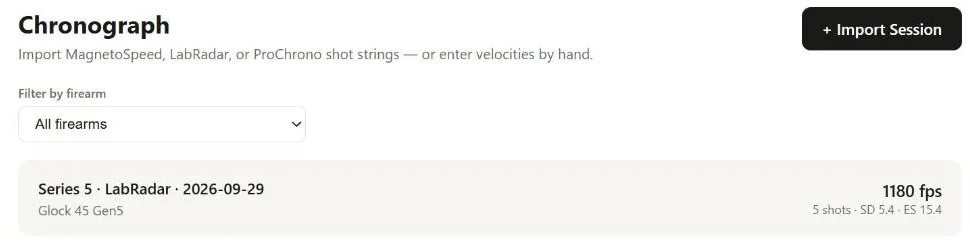
Click + Import Session. Leave Device on Auto-detect unless the detection gets it wrong, then choose your file.
You get a preview first, and nothing is saved yet. It says what the file was Detected as, and lists each session it found with its shot count, average, SD and ES. If a MagnetoSpeed file held more than one series, it says This file contained more than one session — review the split below before importing. Untick any session you don't want. A ProChrono file with several strings is split into sessions the same way.
On the same screen you can set a Session name, the Date, and optionally the Firearm and Ammo lot. The ammo list only shows lots in the firearm's caliber. Then click Confirm and Import, which shows how many sessions it will save.
3. No CSV? Enter velocities by hand
For a Garmin Xero, or any chronograph without a CSV export, click Or enter shot velocities manually → in the import dialog.
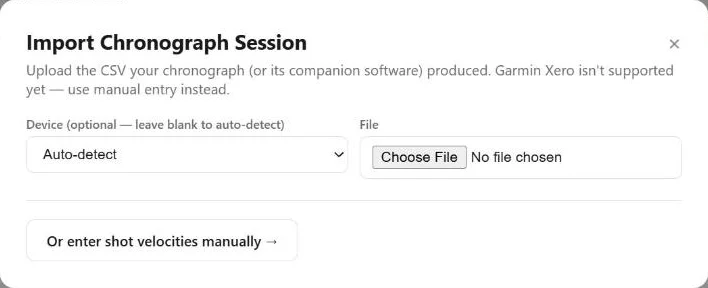
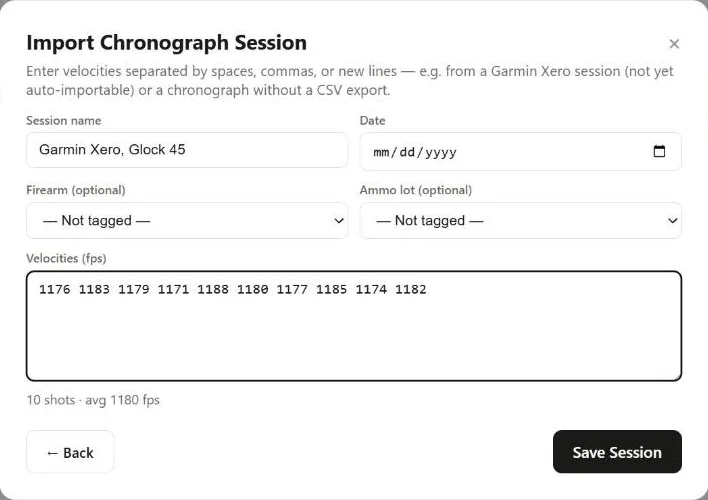
Type the velocities in Velocities (fps), separated by spaces, commas or new lines. The count and average update as you type: ten shots here, averaging 1180 fps. Add a session name, date, firearm and ammo lot if you like, and click Save Session.
4. Tag the session to a gun and ammo lot
Click a session to open it. The top shows Avg Velocity, Standard Deviation, Extreme Spread and Shots. The Shot String table below lists every shot with its velocity, its deviation from the average and the time.
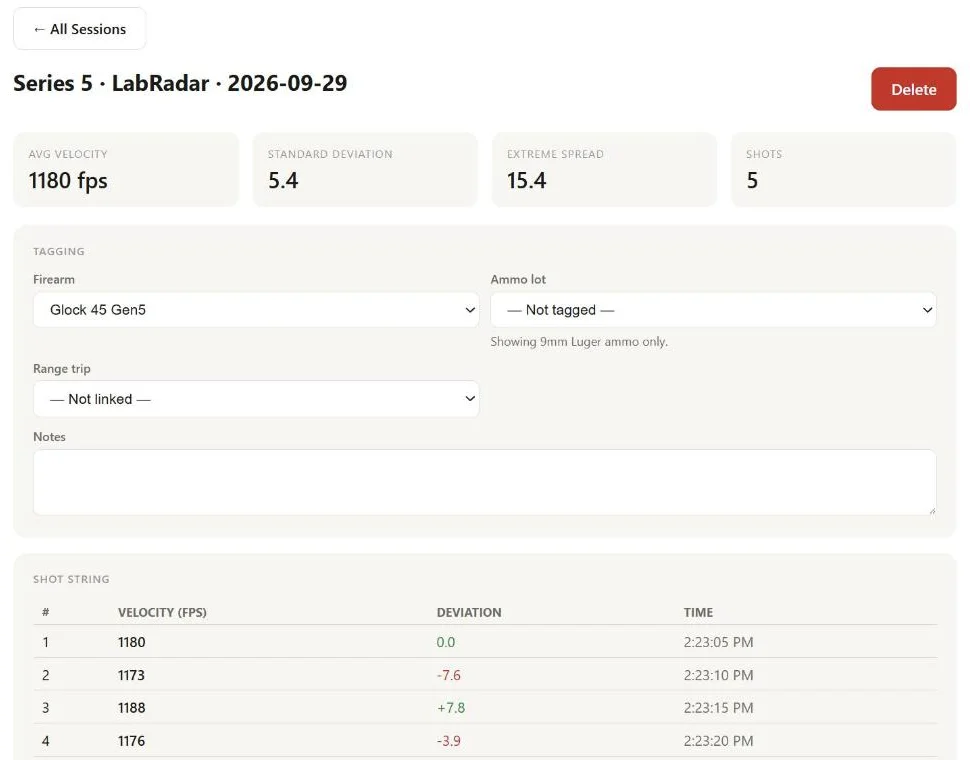
SD is the population standard deviation of the string. ES is the fastest shot minus the slowest. SD tells you how consistent the load is from shot to shot; ES is the worst pair in the string, so one odd shot moves it a lot. Five shots is a small sample for either number. If you're judging a load, shoot a longer string or several sessions with the same lot and compare them on this page.
Under Tagging, set:
- Firearm: the gun you shot. Here, the Glock 45 Gen5.
- Ammo lot: the lot you shot. The list shows only ammo in the gun's caliber (Showing 9mm Luger ammo only.).
- Range trip: the trip the session belongs to. You link a trip here, on the session page, not at import.
- Notes: temperature, altitude, barrel, anything you want to remember.
Click Save Changes.
Tagging an ammo lot changes the lot. When you pick a lot, the page warns Saving will set this ammo lot's velocity to 1180 fps. (or whatever this session averaged). The lot's velocity is replaced by the session's average. If you tag several sessions to the same lot, the latest one wins.
If the ammo's bullet diameter doesn't match the gun, you get a Caliber mismatch warning and are asked whether to tag it anyway. Cartridges that share a bullet diameter, such as 5.56 and .223, don't trigger it.
If you delete the firearm or the ammo lot later, the session stays and is simply untagged. Delete at the top removes the session itself.
5. Use the velocity in DOPE cards and recipes
A DOPE card is only as good as the muzzle velocity it starts from. In a DOPE card, MV Source is either Manufacturer or Measured (chrono). Click Pull From Chronograph Session: it fills in Muzzle Velocity from your measured data and sets the source to Measured. How to Build a DOPE Card for Your Rifle covers the rest of the card.
For factory ammo, compare the session average with the figure on the box. Once you tag the lot, its velocity is your measured number, not the manufacturer's, and any DOPE card you build for that lot starts from what your barrel actually does. A pistol like the Glock 45 rarely needs a DOPE card, but the same tag tells you how a defensive load really performs from your gun.
If you reload, tag sessions to the handload lots your batches created. The recipe's Performance section then shows average velocity and average SD for each gun, from every session tagged to that recipe's lots. Track Your Reloading on the Web shows how batches become ammo lots.
The chronograph is a web-app feature. The GunCollector phone app doesn't have a chronograph screen yet, so import and review your sessions on the web at app.guncollector.app.