Screenshots are from the Android app. The iPhone app has the same screens and the same steps; its tab bar floats at the bottom of the screen and it uses Face ID for the lock.
1. Install and sign in
GunCollector is coming soon to the App Store and Google Play. When it's live, the badges below will take you straight to the listing.

 Coming soon
You don't need a new account. Sign in with the same email and password you use at app.guncollector.app, or with Continue with Google (and Continue with Apple on iPhone) if that's how you signed up. New to GunCollector? Tap Create account on the sign-in screen, or create one on the web first.
The first time you sign in, the app downloads your whole collection to the phone. After that it only fetches what changed, and everything on the phone is readable with no signal at all.
2. The dashboard
The Dashboard tab is the first screen you see. Four numbers across the top — firearms, rounds on hand, estimated collection value and NFA items — then anything that needs your attention:
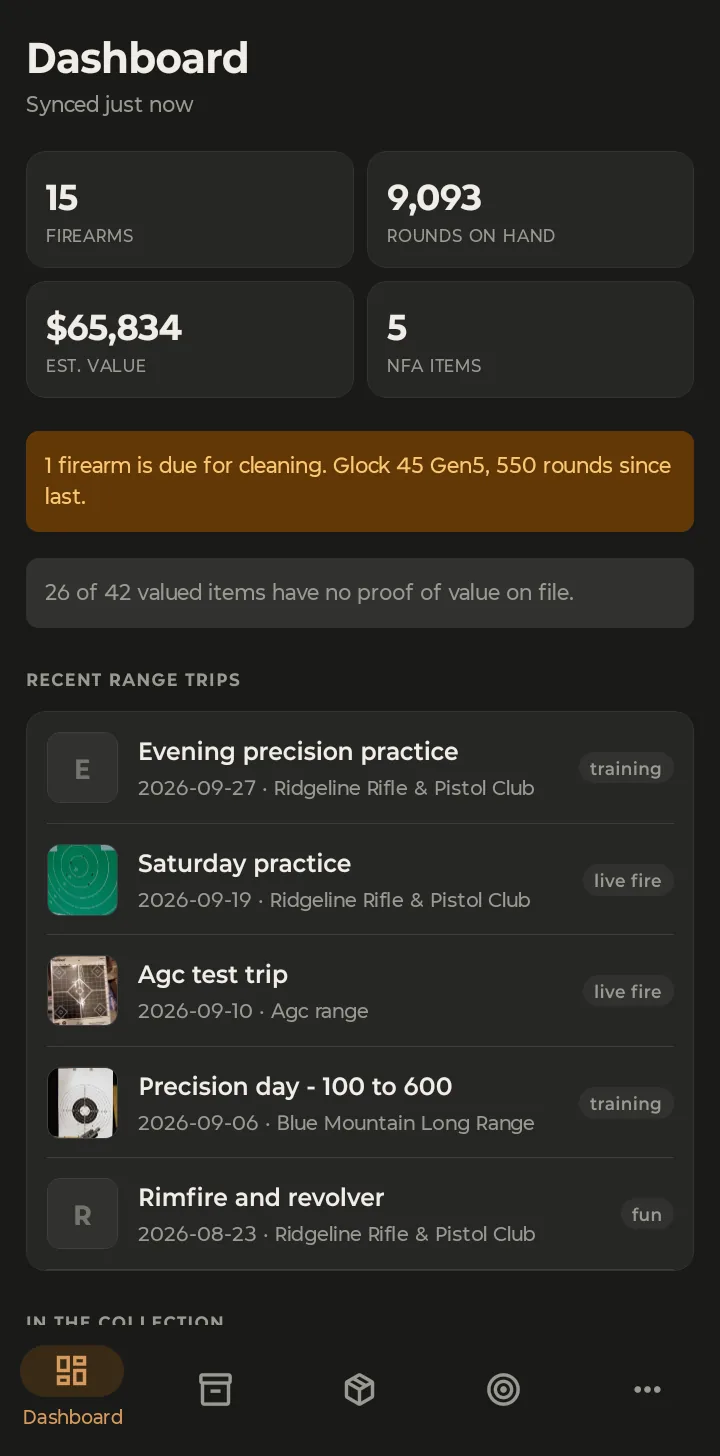
- Cleaning reminders — any firearm past its cleaning interval, with the number of rounds since it was last cleaned.
- Proof of value — how many valued items have no receipt or appraisal on file, which is what an insurer will ask for.
- Recent range trips and the newest items in your collection, one tap from their detail pages.
“Synced just now” under the title tells you how fresh the numbers are. Pull down on the dashboard to sync by hand.
3. Your collection
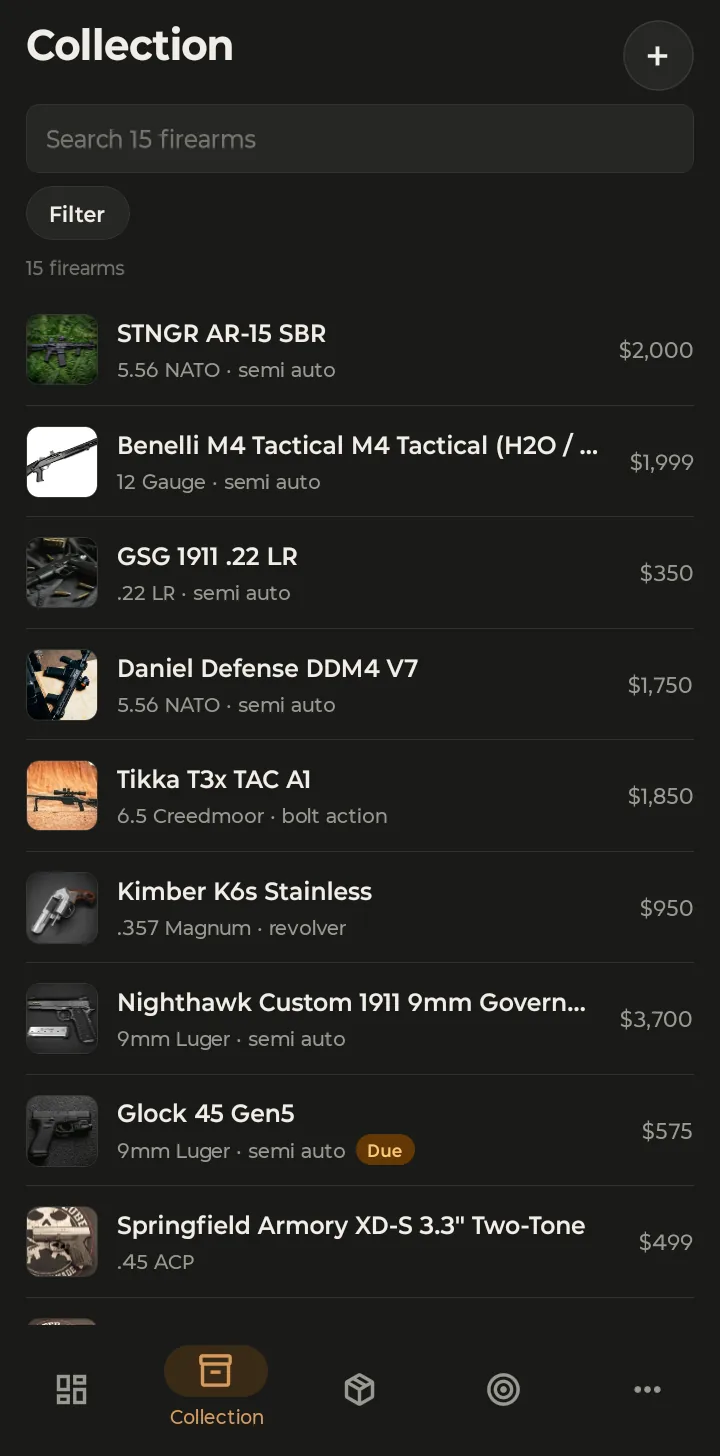
The Collection tab lists every firearm with a photo thumbnail, caliber, action and estimated value. Use the search box or Filter to narrow it down; a brass Due tag marks anything that needs cleaning. The + button adds a firearm — see Add a Firearm From Your Phone.
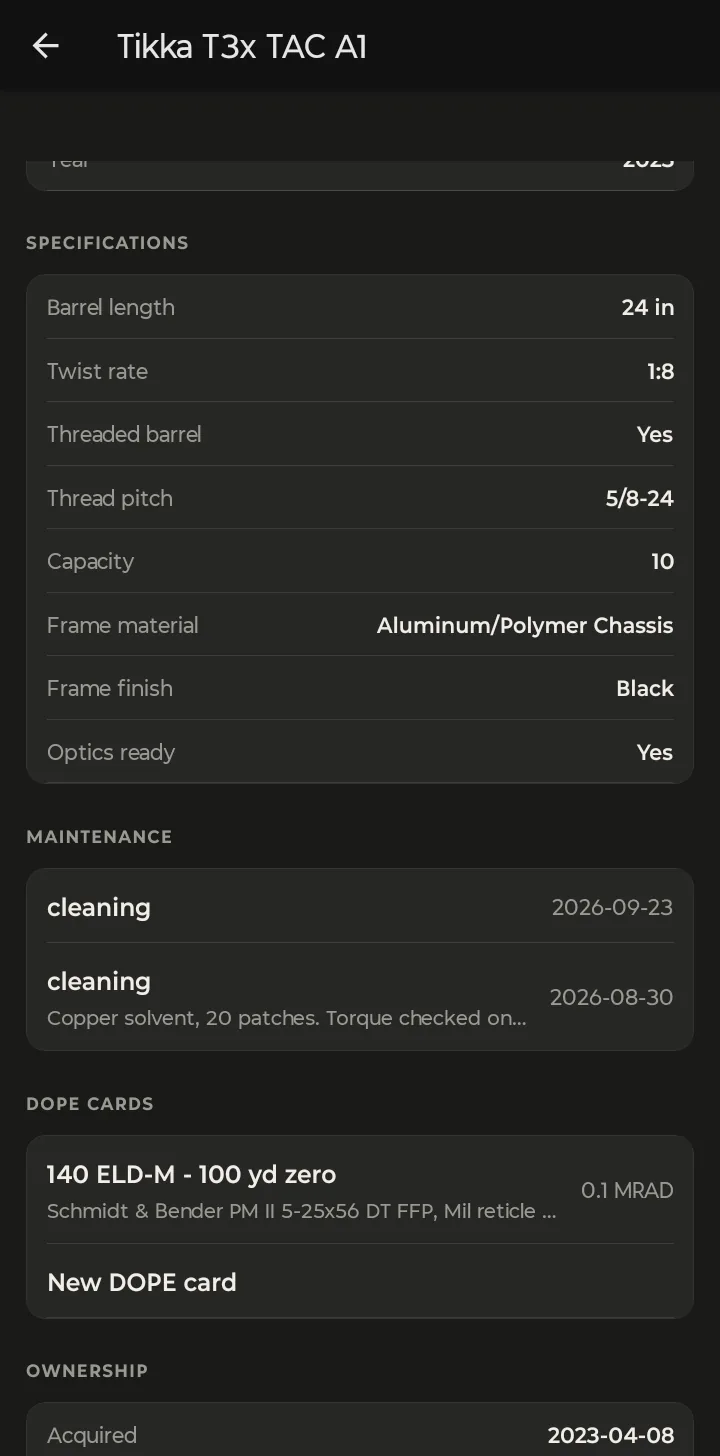
Tap any firearm to open its record:
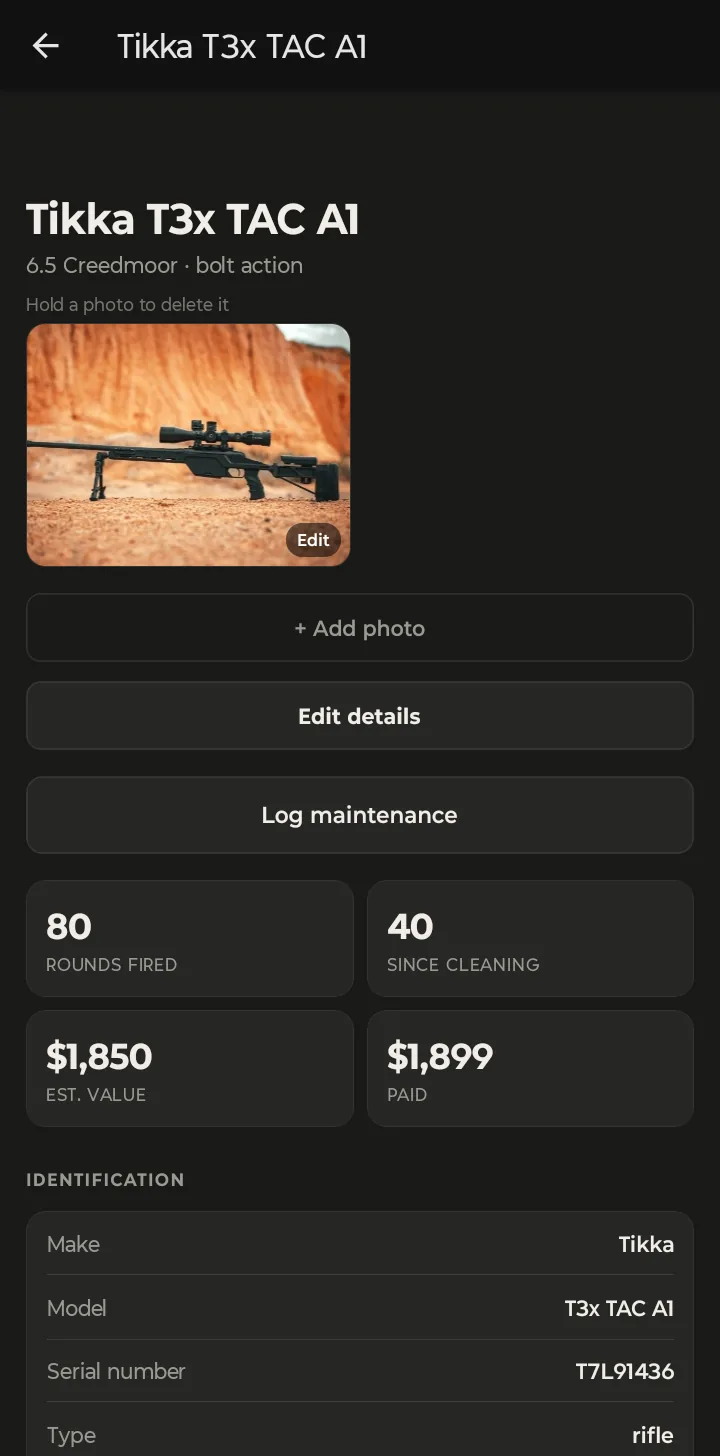
Scroll down a firearm record and you'll find everything else attached to it: identification (make, model, serial, type, action), specifications, maintenance history, DOPE cards for that rifle, and ownership details like where it's stored.
To add another photo, tap + Add photo. To delete one, press and hold it. Edit on a photo opens the photo editor.
4. Ammo and round counts
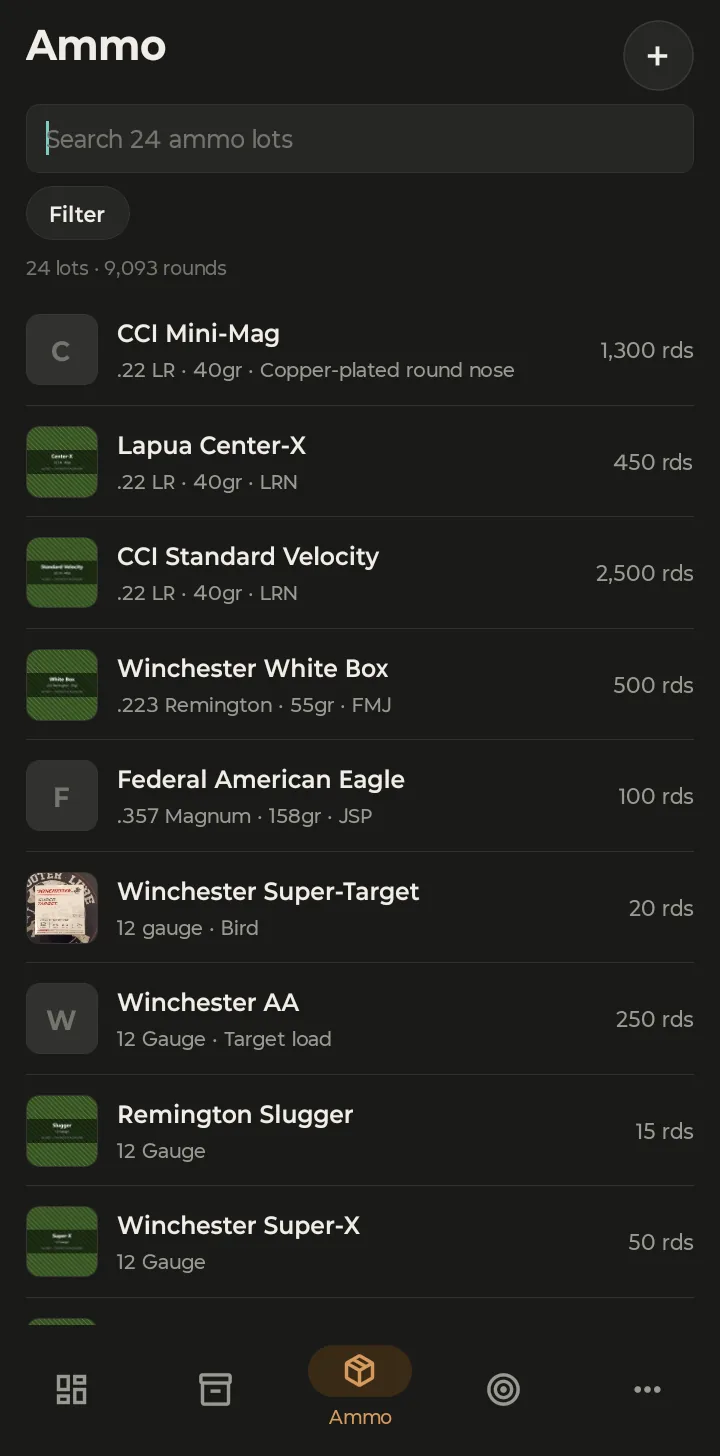
The Ammo tab lists every ammo lot with its caliber, bullet weight and type, and the rounds on hand. The line under the search box totals it up across all your lots.
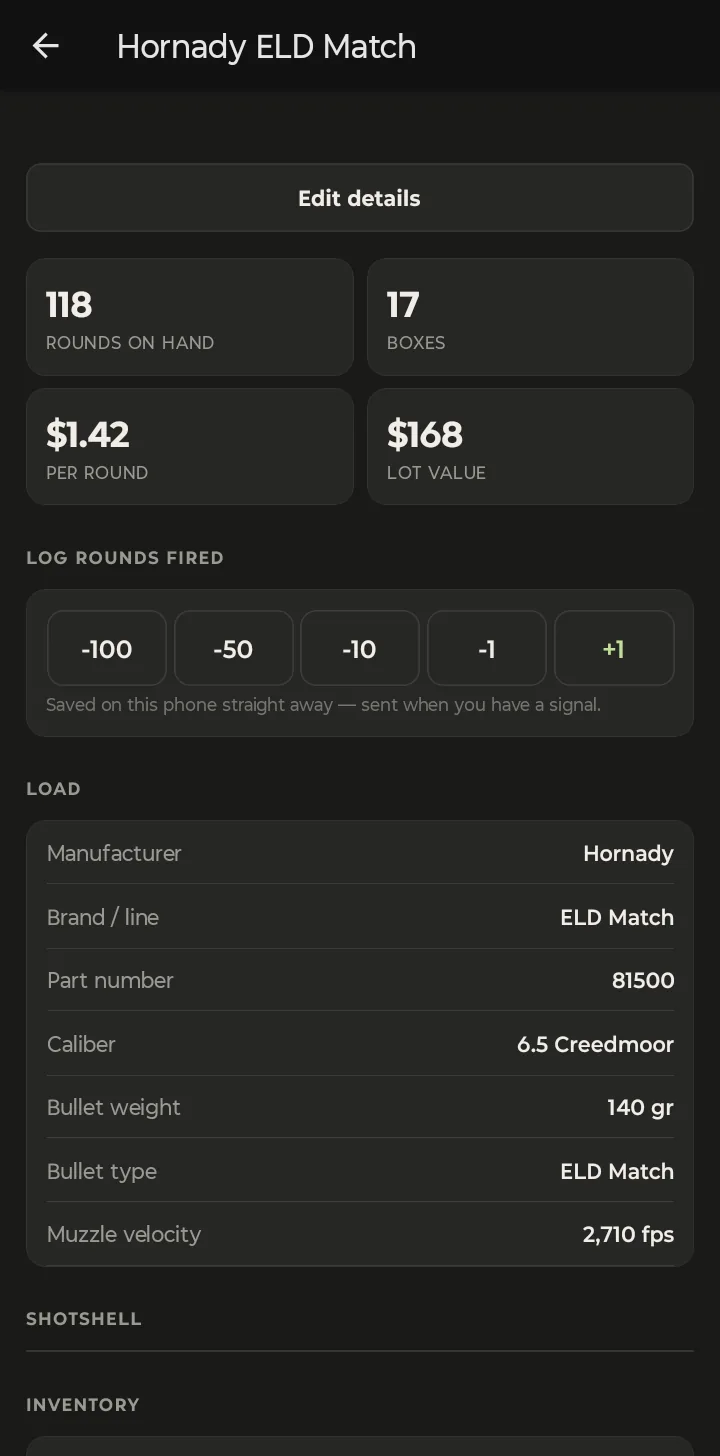
Inside a lot, the Log rounds fired buttons (−100, −50, −10, −1, +1) adjust the count with one tap. They save on the phone immediately and sync when you have a signal, so they work in the middle of a match. If you're logging a whole range session, use a range trip instead (next section): it deducts the rounds for you and updates the firearm's cleaning counter as well.
5. Range trips
The Range tab is your shooting log. Each trip shows its date, range and type (live fire, dry fire, competition, training, class, zeroing or fun), with the target photo as its thumbnail.
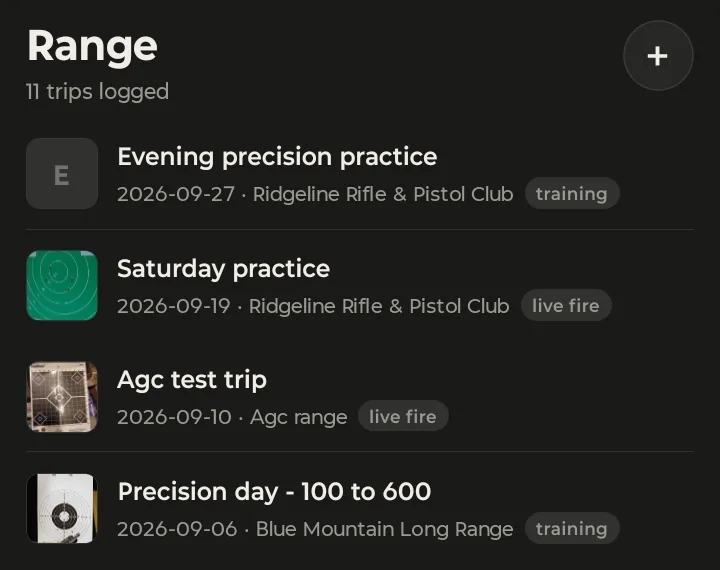
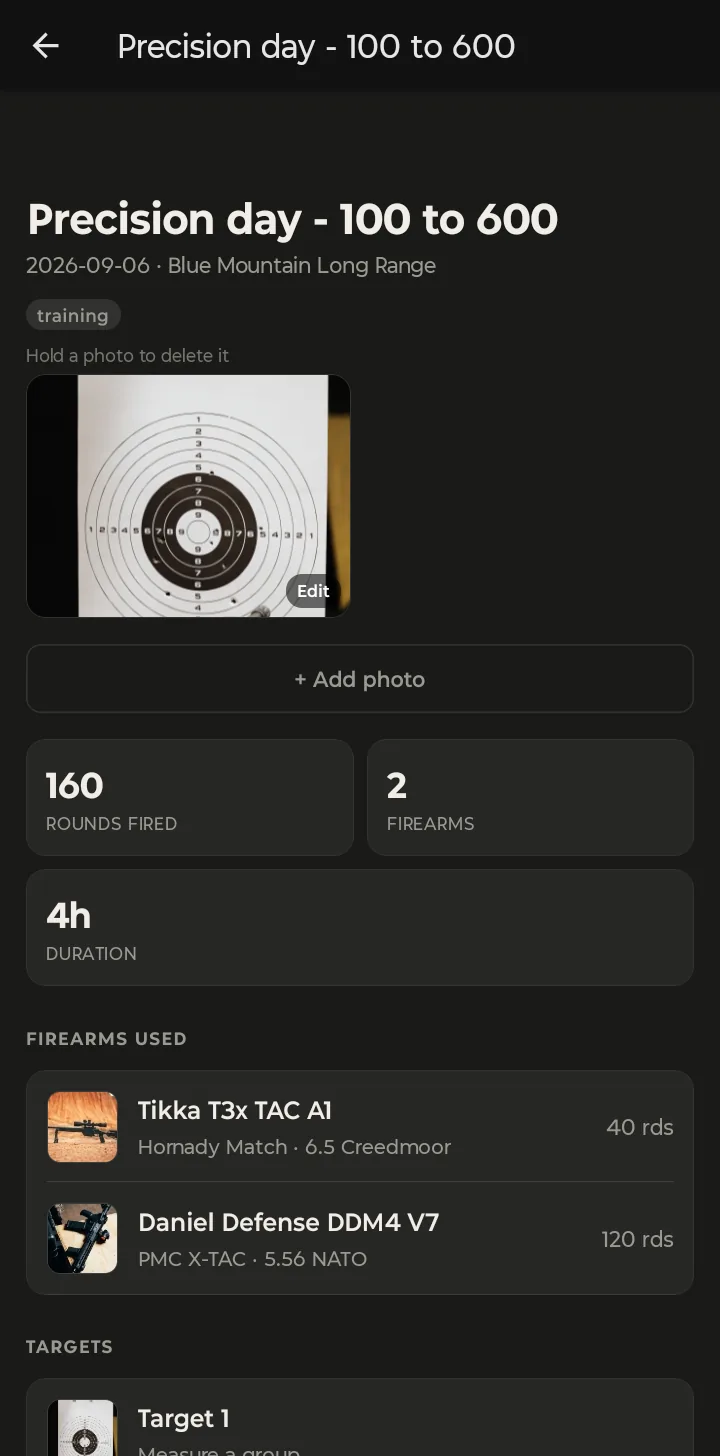
Tap + to log a trip. Rounds fired come off the ammo lot you pick and go onto each firearm's cleaning counter. Log a Range Trip With No Signal walks through it, including what happens when you're out of range of a tower. Target photos on a trip open the group measurement tool; see DOPE Cards and Group Measurement on Your Phone.
6. NFA items, accessories and maintenance
The More tab holds the rest of your collection: NFA items, Accessories and Maintenance, each with a count.
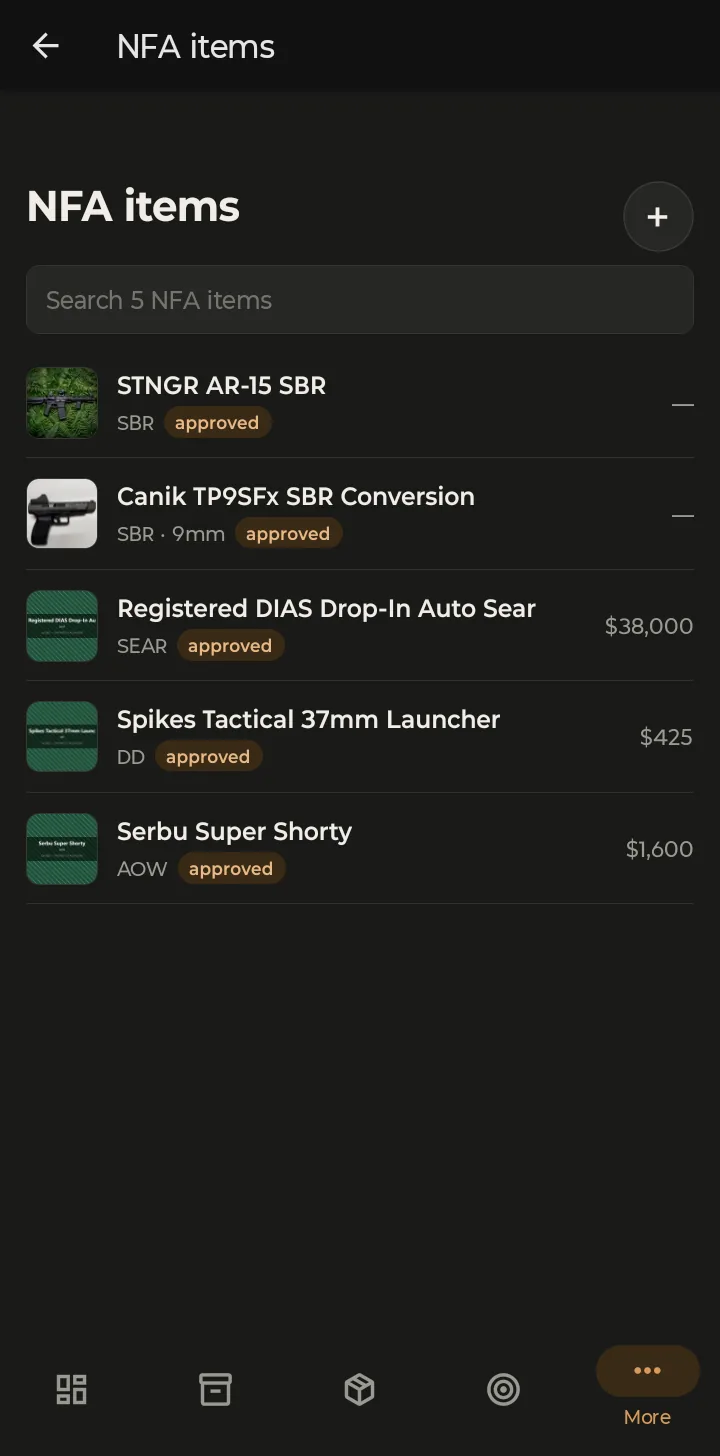
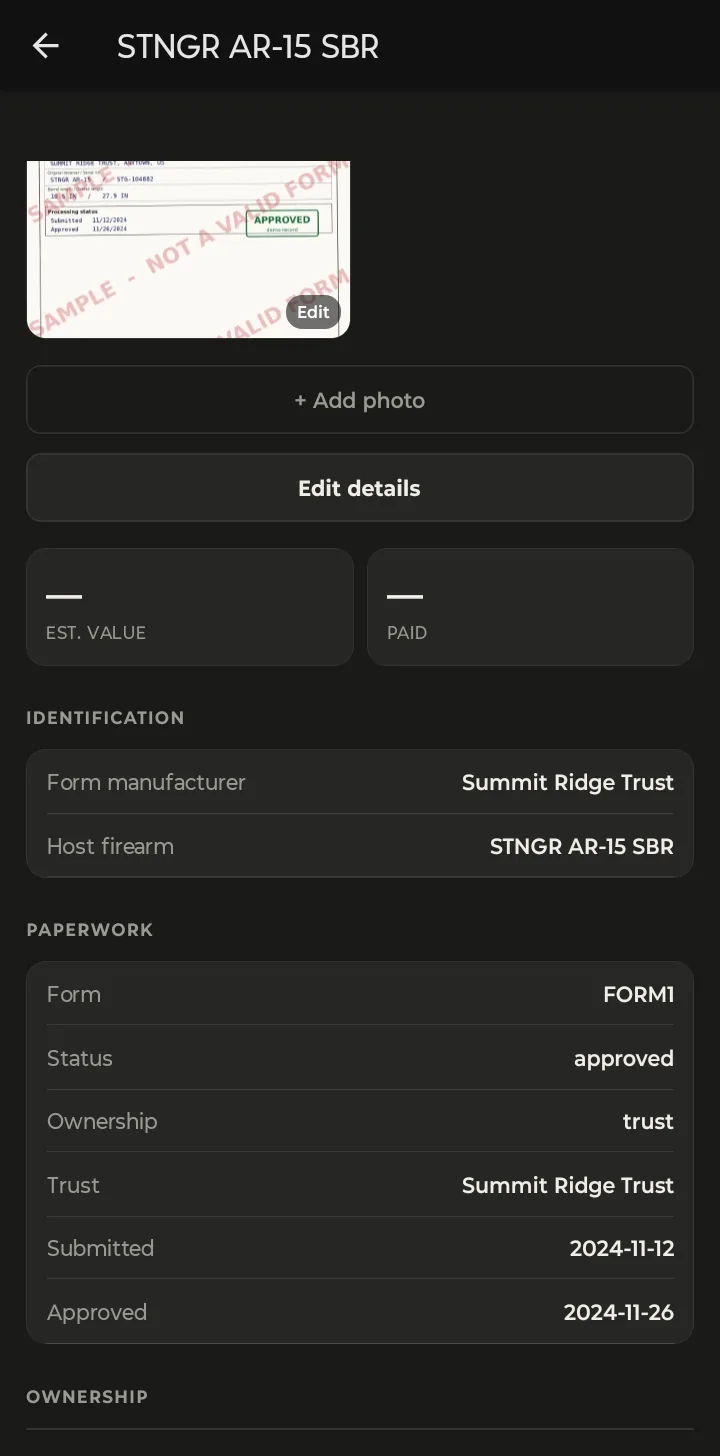
An NFA record keeps a photo of your approved form alongside the details you'd need to show someone: form type, status, whether it's on a trust or individual, and the submitted and approved dates. (The form in these screenshots is a watermarked sample, not a real one.)
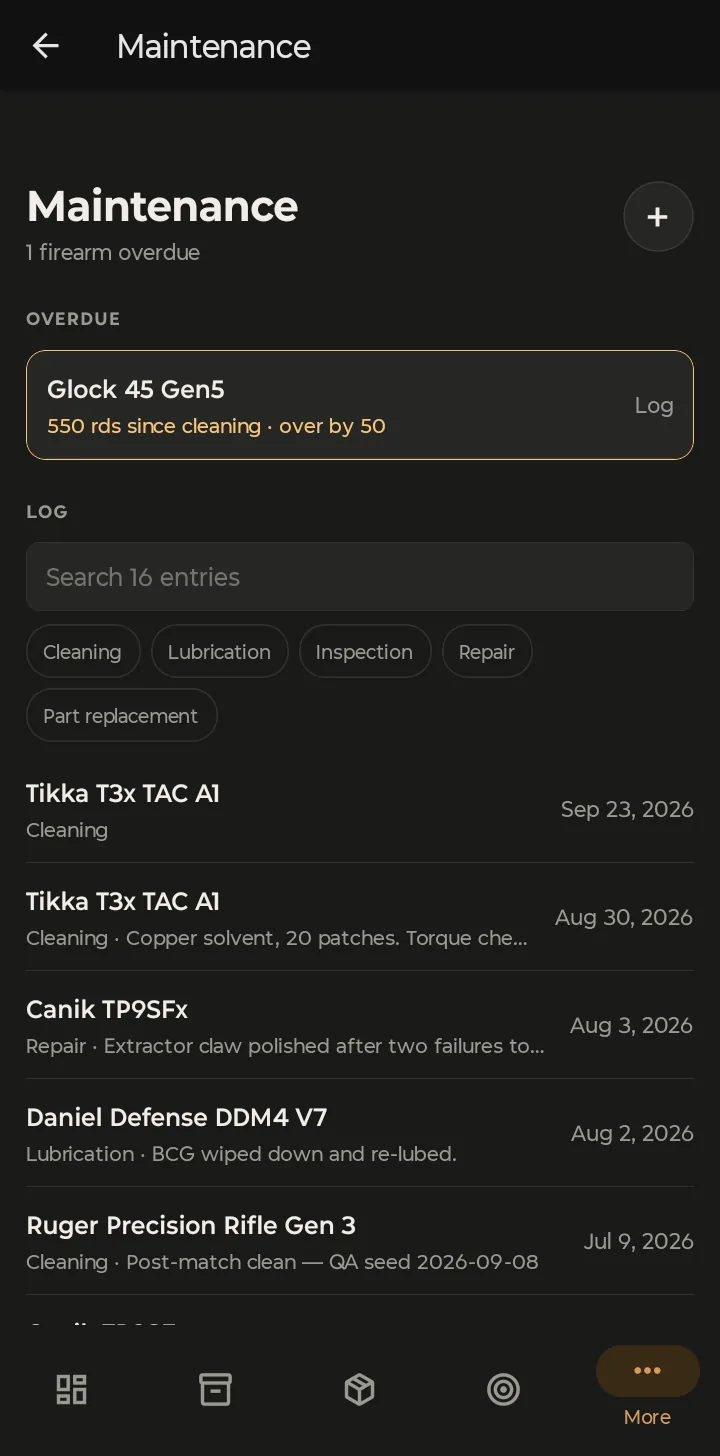
Maintenance puts overdue firearms at the top — tap Log to record the cleaning and reset the counter — with your full maintenance history underneath, filterable by cleaning, lubrication, inspection, repair and part replacement.
7. Privacy, security and sync
Further down the More tab are the settings that control how the app protects your data:
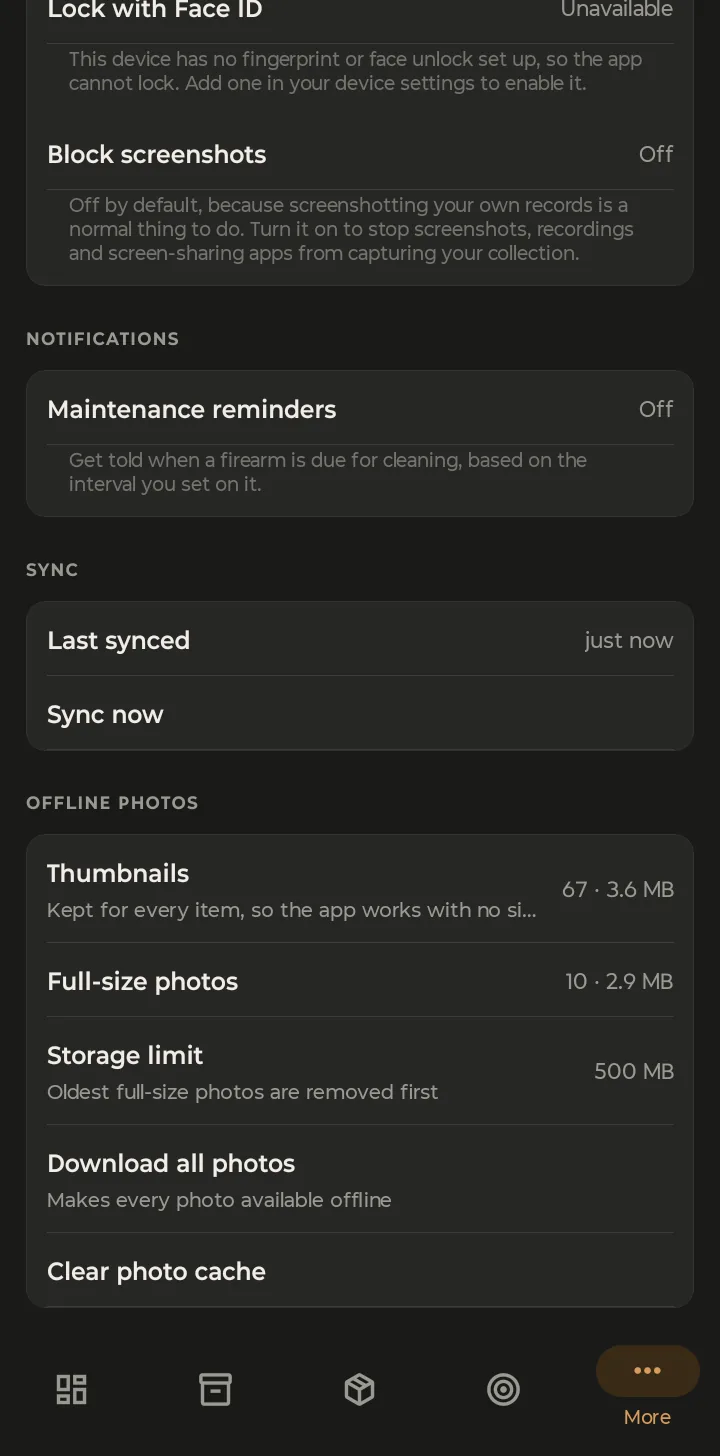
- Biometric lock — require Face ID, fingerprint or face unlock to open the app. It needs biometrics set up in your phone's settings first.
- Block screenshots — off by default. Turn it on and screenshots, screen recordings and screen-sharing apps capture a blank screen instead of your collection.
- Maintenance reminders — a notification when a firearm reaches its cleaning interval.
- Sync — when the phone last synced, how many changes are waiting to send (this line only appears when there are some), and Sync now.
- Offline photos — thumbnails are kept for every item so the app works with no signal. Full-size photos are cached up to a storage limit you choose, or tap Download all photos before a trip.
The copy on your phone is encrypted. The app's local database is encrypted on the device, and location data is stripped from every photo before it's uploaded.
8. What stays on the web
The app covers what you need away from a desk. A few heavier tools live in the web app at app.guncollector.app, and anything you do there shows up on your phone at the next sync:
- Insurance valuation reports and collection exports
- Chronograph CSV import