Screenshots are from the Android app. The iPhone app has the same screens and the same steps; its tab bar floats at the bottom of the screen and it uses Face ID for the lock.
1. Tap + on the Collection tab
Open the Collection tab and tap the + button in the top right. You get three ways in:
- Identify from photo — take a picture with the camera right now.
- Choose from library — use a photo you already took. The app only sees the photo you pick, not the rest of your library.
- Enter details manually — skip the AI and type it in.
For the best result: fill the frame with the firearm, side-on, in even light. Markings on the slide or receiver help a lot — the AI reads them. A plain background beats a cluttered bench.
2. Let the AI identify it
After a few seconds of “Identifying…”, you land on Check the details with the form already filled in: make, model, variant, caliber, barrel length, capacity and an estimated value, plus the confidence of the match.
Here's a real example. We gave it a photo of a Glock 45 with a weapon light:
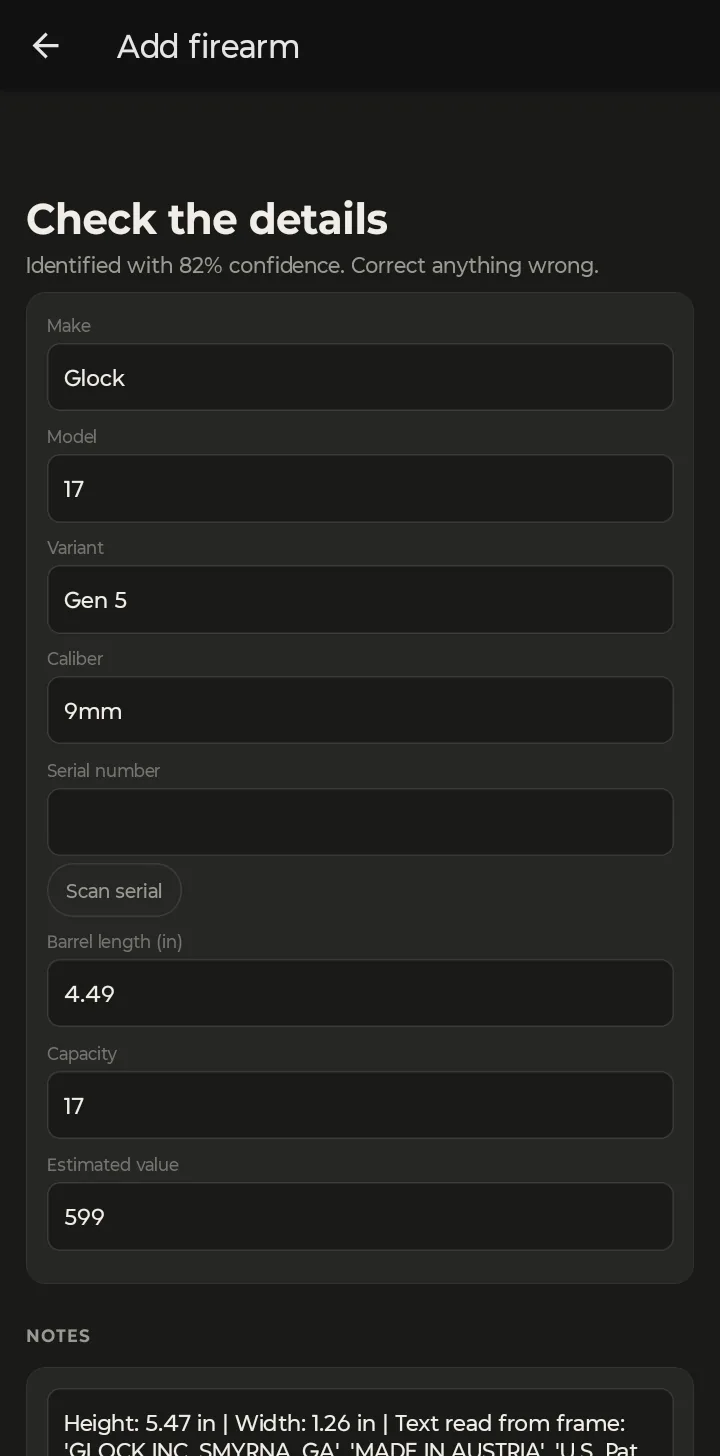
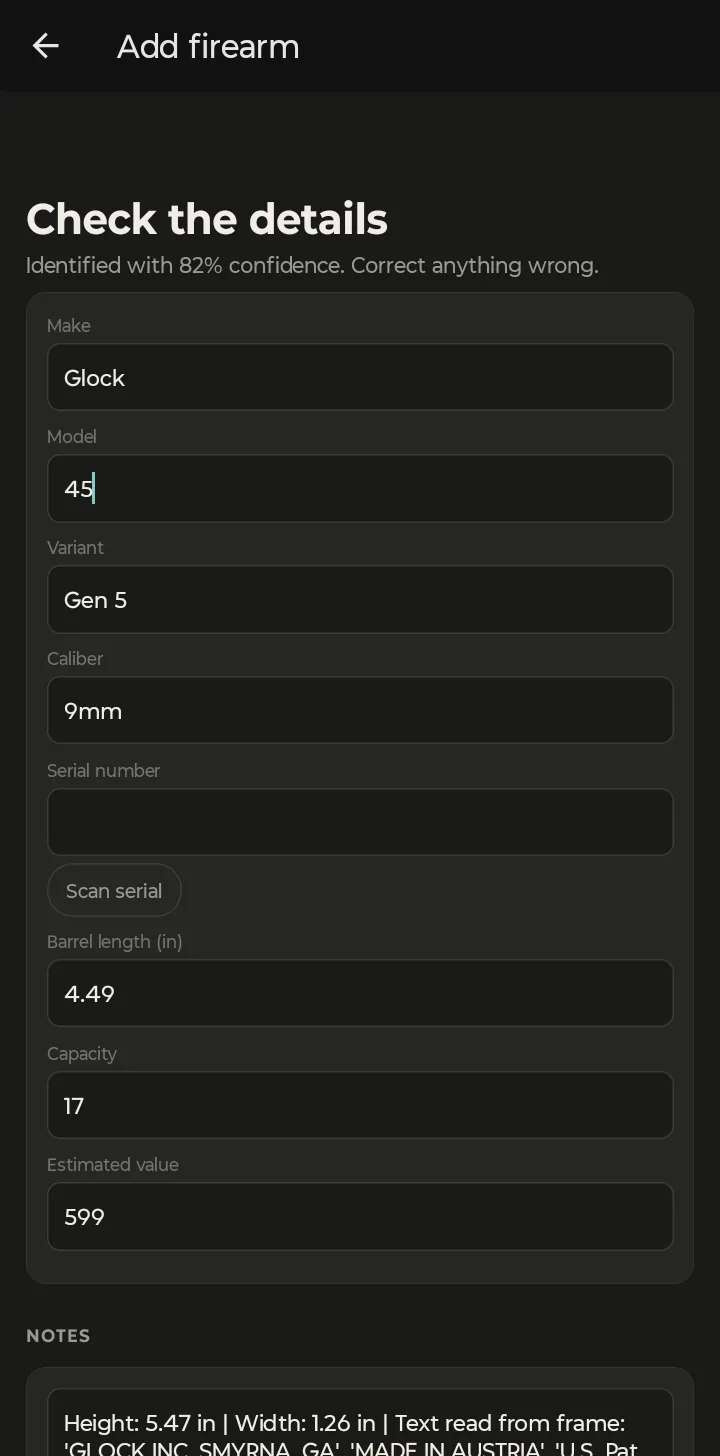
It got the make, generation, caliber and capacity right, and called it a 17. That's an understandable miss: the Glock 45 pairs a full-size frame with the shorter G19 slide, and from one side-on photo it reads as a 17. That's exactly why the screen is called Check the details — nothing saves until you've looked it over, and the confidence number tells you how hard to look. We tapped Model, typed 45, and moved on.
3. Read the AI's notes
Scroll down and the Notes field shows what the AI actually saw: text it read off the frame, accessories it spotted, and the reasoning behind its call.
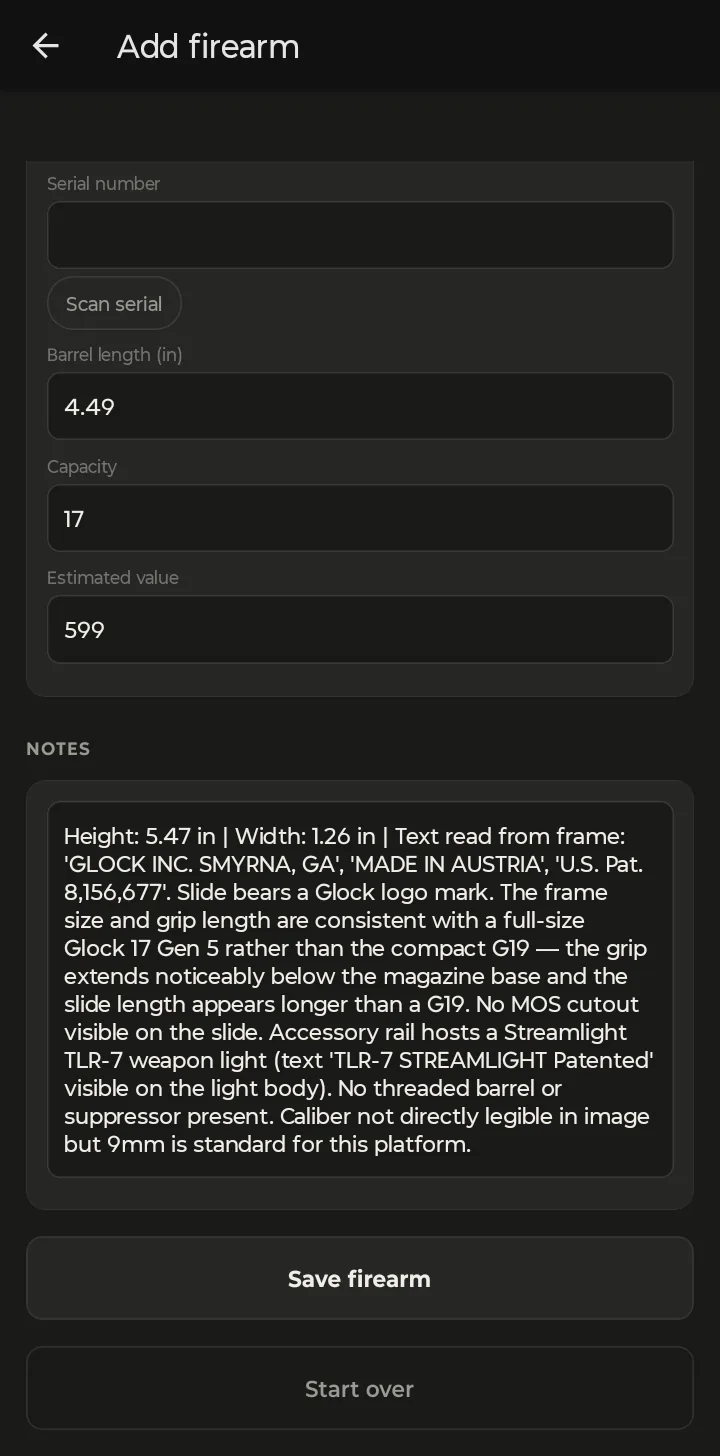
In our example it read “GLOCK INC. SMYRNA, GA” and “MADE IN AUSTRIA” off the frame, and identified the light as a Streamlight TLR-7. The notes save with the record, so edit or trim them as you like.
4. Add the serial number
The serial is left blank on purpose — it's the one field you should always confirm yourself. Type it, or tap Scan serial and point the camera at the serial number to read it in.
5. Save
Tap Save firearm. The photo you used is attached to the new record, and the firearm shows up in your Collection straight away.
From the new record you can add more photos (a photo of the receipt is good proof of value for insurance), fill in ownership details, and set a cleaning interval so the maintenance reminders know when to nag you.
No signal? Identification needs a connection, so the app offers Enter details manually instead. Fill in what you know and save: the record and your photo are kept on the phone and upload when you're back online.
Start over throws the draft away if you picked the wrong photo.