Most people clean a gun when they remember to, and couldn't tell you when they last replaced the recoil spring. That's fine until a pistol starts choking and you're trying to work out whether it's the gun, the ammo or a magazine. GunCollector already knows how many rounds each gun has fired from your range trips, so it can tell you when one is due, and keep the history that answers those questions later. Everything in this guide is from a real account: a Canik TP9SFx that had two failures to extract in a week, then had its extractor polished, plus a Tikka T3x rifle.
1. Set a cleaning interval
The interval is how many rounds you want to fire between cleanings. Open a firearm, edit it, and scroll to Maintenance. Fill in Cleaning interval (rounds). The same field is on the form when you add a new firearm.
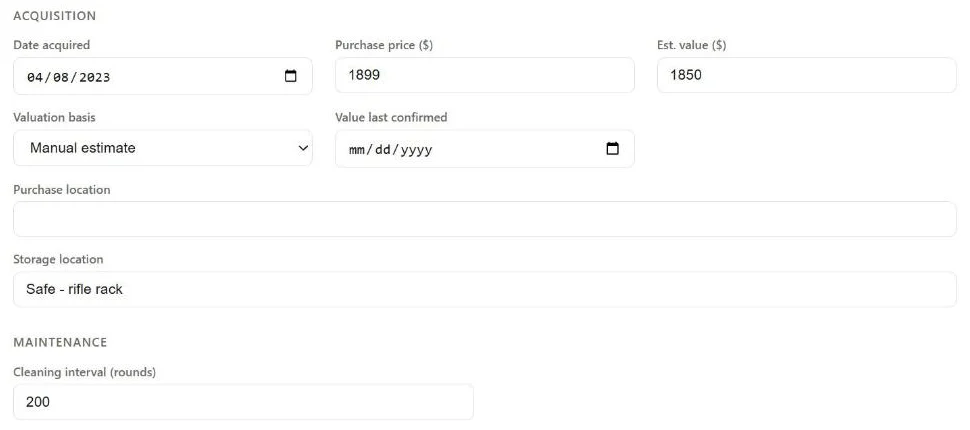
Pick a number that matches how you actually treat the gun. A precision rifle might be 200; a range pistol might be 400 or more. The Canik in this account is set to 400.
If most of your guns use the same number, set it once under Settings → Defaults → Default cleaning interval. You can still change it on any firearm.
From then on, the count looks after itself. Rounds you log on a range trip add to the gun's Since last cleaning count, shown on the firearm's Overview next to its Cleaning interval. When that count reaches the interval, the gun is overdue.
2. See what's overdue
Click Service in the top menu. The Maintenance page leads with what needs attention: how many firearms are overdue, then an Overdue row for each one, with the rounds since its last cleaning and how far past the interval it is.
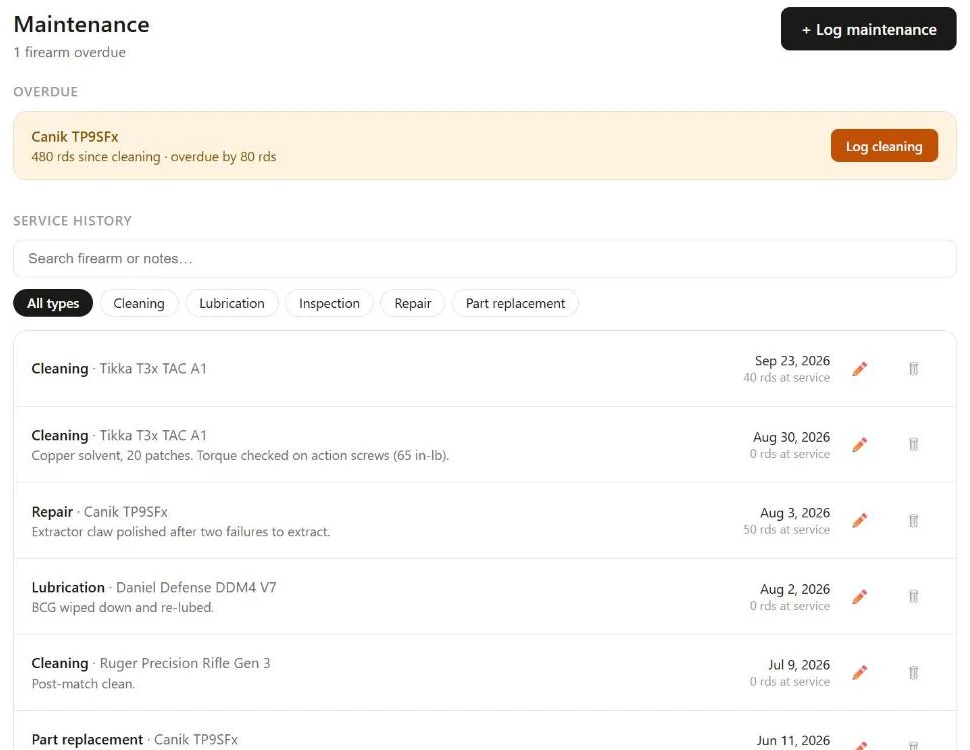
The Canik has fired 480 rounds since its last cleaning against a 400-round interval, so it's 80 over. Click Log cleaning on the row to record it. When nothing is due, the page says All firearms are up to date on maintenance.
You don't have to visit the page to find out. An overdue gun also shows up in these places:
- On the firearm: an Overdue for cleaning badge next to its name, and an OVERDUE badge on its card in your collection.
- On the dashboard: a banner reading "1 firearm overdue for maintenance", with View to jump to the list.
- In the notification bell: "Cleaning due: Canik TP9SFx" with the rounds since its last cleaning and the interval. You get it once each time a gun goes overdue, not every day, and logging a cleaning marks it resolved.
The bell notice is controlled by Maintenance alerts under Settings → Notifications: "Remind me when a firearm is overdue for cleaning — in the app, and on the phone app as a notification." Turn it off if you'd rather just check the Service page.
3. Log a cleaning, repair or part
Click + Log maintenance on the Service page, or on a firearm's Maintenance tab. Pick the firearm and the type. The date fills in as today, and Notes is for products used and what you saw.
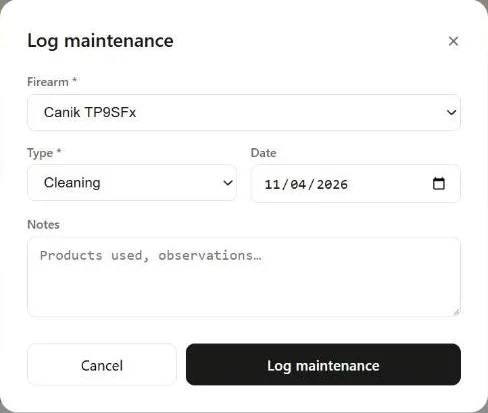
There are five types: Cleaning (the default), Lubrication, Inspection, Repair and Part replacement.
Only a Cleaning resets the counter. Logging a Cleaning sets the gun's rounds since cleaning back to zero. A lube, an inspection, a repair or a new part is recorded in the history but leaves the count alone, so a quick wipe-down doesn't hide a gun that's really due.
Each record also notes how many rounds the gun had fired when you serviced it, shown as "rds at service". Click the pencil on a record to fix it in Edit service record.
Back on the Service page, Service history lists every record across your collection, newest first. Type in Search firearm or notes… to find one, or click a type chip to see only cleanings, only repairs, and so on. Want to know when you last replaced a part on anything? Click Part replacement.
If you'd rather not keep a cleaning history at all, turn off Cleaning log ("Track cleaning history and intervals") under Settings → Notifications. Logging a cleaning still resets the counter; it just doesn't keep a record.
4. Each gun's service history
Open a firearm and click the Maintenance tab to see that gun's records on their own.
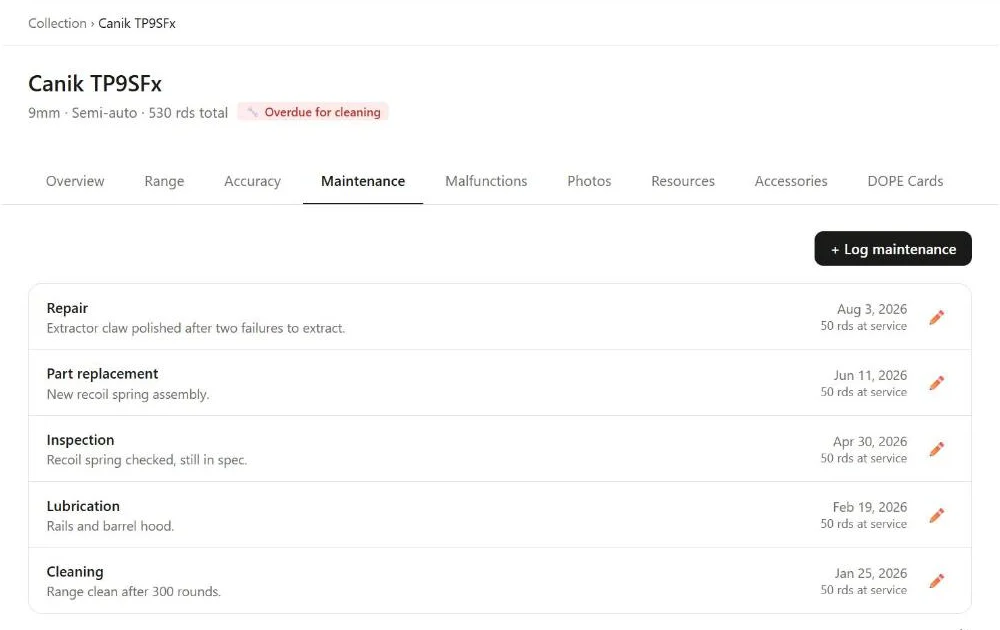
This is the record you'll want if you ever sell the gun, send it back to the maker, or just wonder why it's running differently. Here it shows the recoil spring checked in April and replaced in June, and on Aug 3 a Repair: "Extractor claw polished after two failures to extract." Those two failures are on the next tab.
5. Log a malfunction
On the firearm, click the Malfunctions tab, then + Log malfunction. Pick the Type and the Date; the rest is optional.
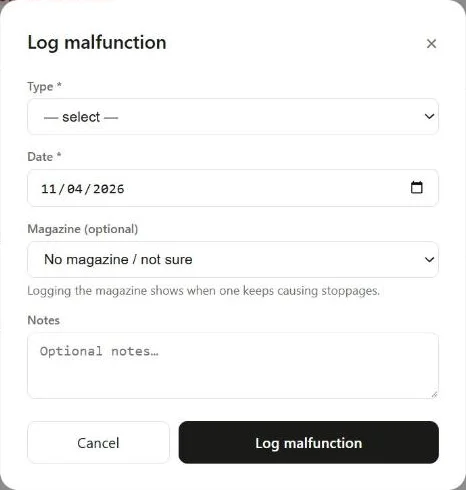
The types are grouped by action:
- Semi-auto: FTF, FTE, FTB, Double feed, Stovepipe, Light primer strike
- Revolver: Cylinder timing, Cylinder binding, Failure to advance
- Bolt-action: Failure to extract, Bolt binding
- Any: AD/ND, Squib load, Other
Pick Other and a Describe field appears for what happened.
Magazine (optional) lists the magazines linked to this firearm first, then your other magazines. As the form says, "Logging the magazine shows when one keeps causing stoppages." If you weren't paying attention to which one it was, leave it on No magazine / not sure.
The tab sums it up at the top: how many malfunctions, and the most common type.
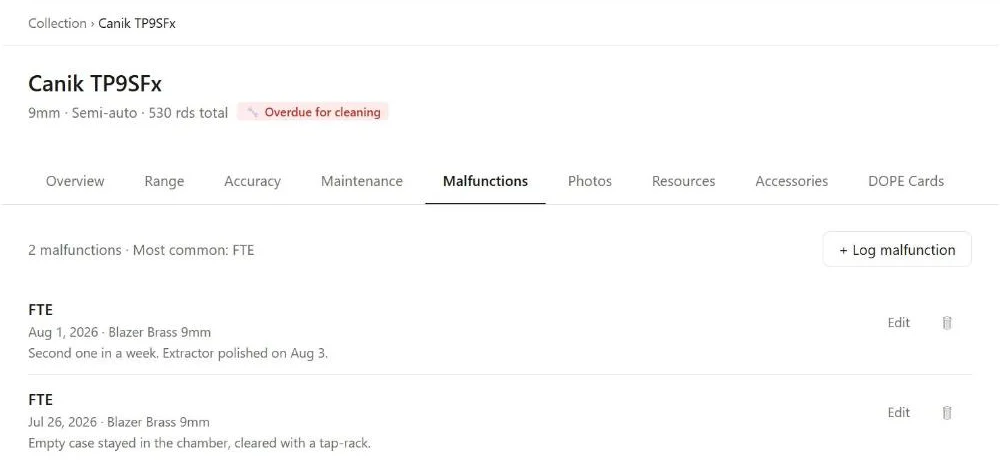
Each row shows the date, the ammo and the magazine when they were recorded, and your notes. Here the notes tell the story: an empty case stayed in the chamber on Jul 26, it happened again on Aug 1, and the extractor was polished two days later. Put that next to the Repair record and you have the whole thing. A gun with a clean record shows "No malfunctions recorded — great!"
The ammo name on these rows came from the range. The web dialog doesn't ask for ammo; when you log a malfunction from a started trip plan in the phone app, it records the plan's ammo lot for that gun.
Cleaning at the bench with your phone? The same maintenance list, overdue alerts and malfunction log are in the GunCollector app for iPhone and Android. Track Gun Cleaning and Malfunctions on Your Phone shows it.