Screenshots are from the Android app. The iPhone app has the same screens and the same steps. Import needs a connection.
Typing a collection into an app one gun at a time is the reason most people never finish. If you've kept a list anywhere (an Excel workbook, a CSV, another app's export, or a GunCollector backup), you can bring the whole thing in at once. GunCollector works out which of your columns is which, shows you every row, and lets you undo the import if it isn't right. Everything in this guide is from a real account, importing GunCollector's own free firearm inventory template with two guns filled in: a Ruger 10/22 Carbine and a Glock 19 Gen 5.
1. Open Import and pick your file
Tap More, then Import. Its line in the menu says what it's for: From a spreadsheet, another app or a backup · needs a connection.
Tap Choose a file. Your phone's own file picker opens, so the file can come from anywhere the picker reaches: the phone's storage, Google Drive, or an attachment you saved from an email. It can be:
- Excel (.xlsx): every sheet in the workbook is read.
- CSV, from any spreadsheet program or another app.
- JSON, such as a GunCollector backup exported on the web.
The file can be up to 8 MB. Older formats (.xls, Numbers and .ods) aren't read: save the file as .xlsx (Excel) or CSV first.
No spreadsheet yet? Download our template from guncollector.app/downloads/firearm-inventory-template.csv, fill it in, and import it. That's the file used here.
What the AI sees. The screen says it under the button: columns are matched by AI, and it sees your headers and a few sample values with serial numbers, names and addresses hidden, never whole rows. Nothing is saved until you tap Import.
2. Check the columns
Once the file is read, a banner says the columns were matched by AI and asks you to tap Check columns on each sheet. Below that are notes on anything it wasn't sure of. Here the template has a Condition column (Excellent, Very Good) with no matching field, so it will be kept as a note on each gun rather than dropped.
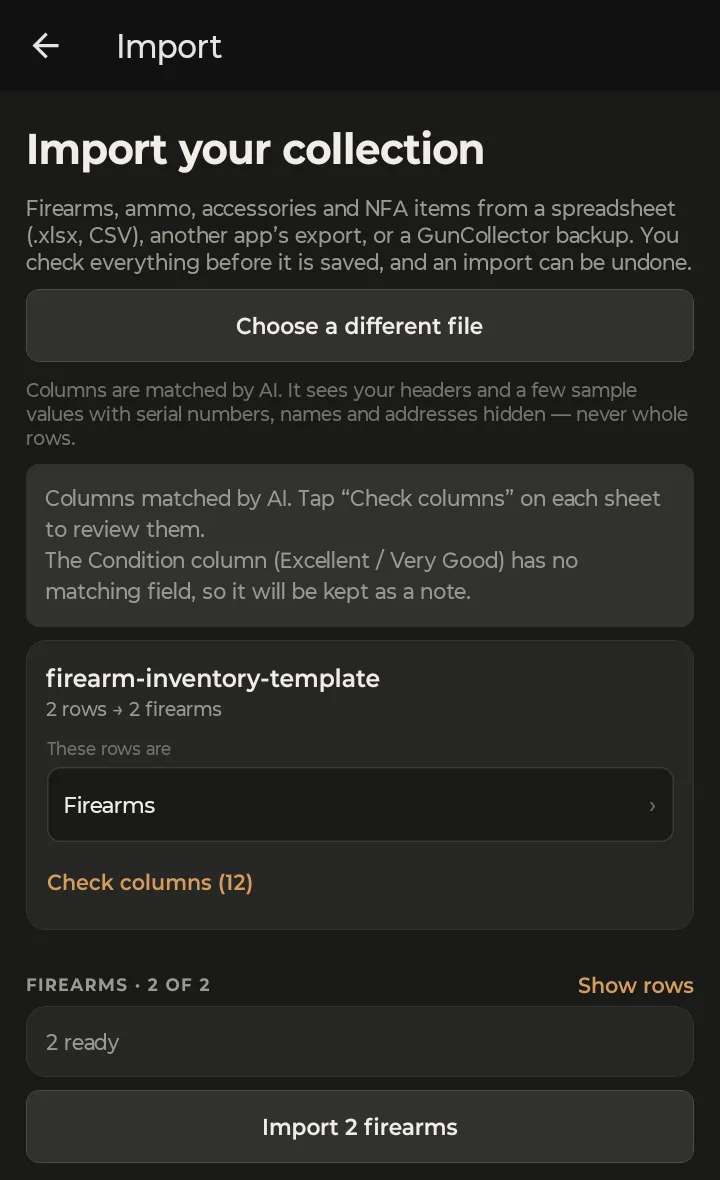
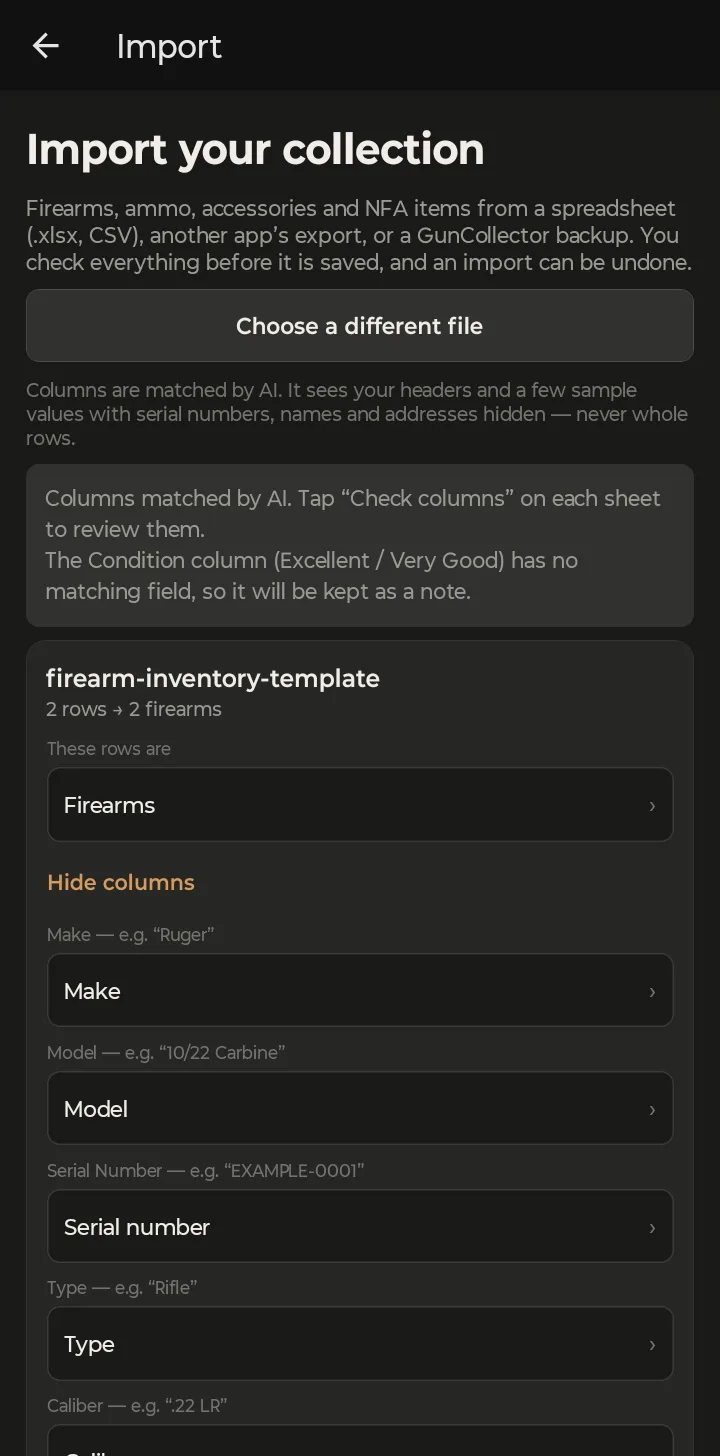
Each sheet gets a card with its row count and what those rows will become (2 rows → 2 firearms). Check two things:
- These rows are: tap to change it if the sheet holds ammo, accessories or NFA items instead, or to skip the sheet.
- Check columns (12 here): opens the list of your columns. Each one shows its name and a sample value from your file, with the field it goes to underneath. Tap a field to change it if the match is wrong.
Your headings don't need to match GunCollector's. That's the point of the matching: a column called Maker or Ser. No. lands in the right place.
An Excel workbook gets one card per sheet, so a file with a tab for guns, a tab for ammo and a tab for NFA items comes in all at once. Check each card: a sheet that only holds totals or notes is better skipped than imported as items.
3. Check the rows
Under the sheets, each kind of item has its own section, such as Firearms · 2 of 2, with a summary (2 ready). Tap Show rows to see them all.
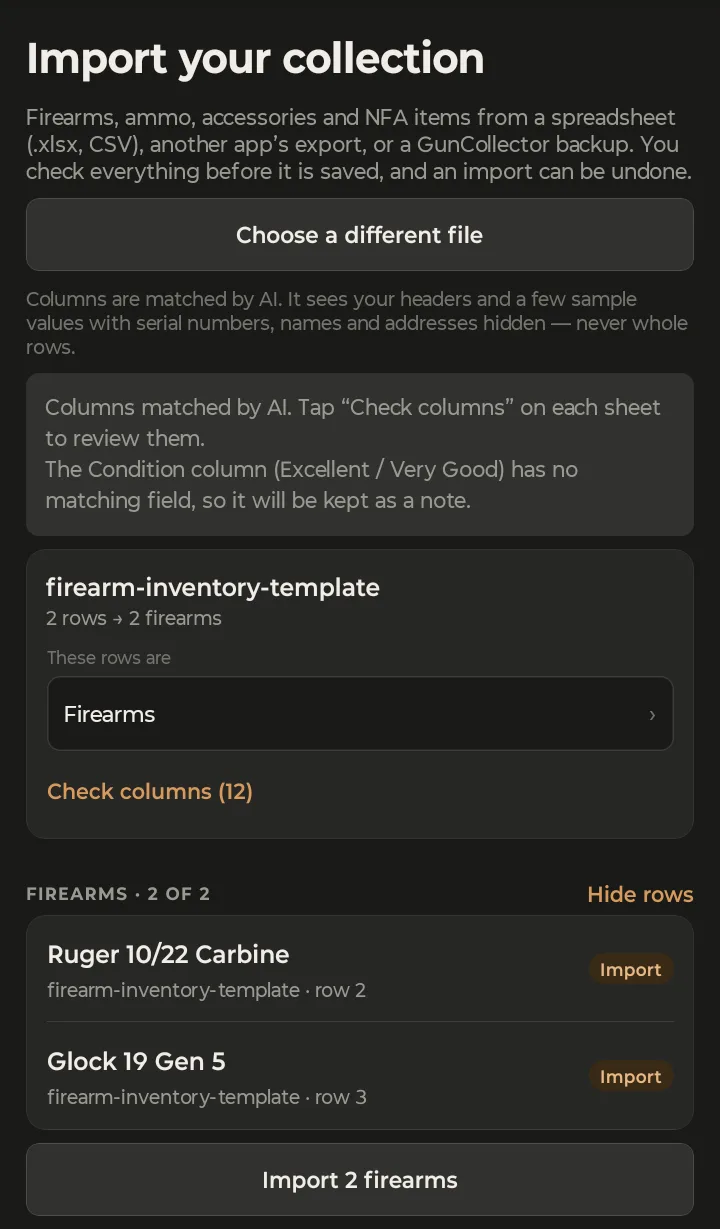
Each row shows the item, the sheet and row it came from, and what will happen to it. Tap a row to change that:
- Import or Skip. Rows with errors, and duplicates of guns you already have (same serial number), start as Skip.
- Add rounds to existing lot, for an ammo row that matches a lot you already have (same caliber, manufacturer, brand, grain and bullet type). The rounds are added to that lot instead of making a second one.
Duplicates are caught by serial number, both against guns already in your collection and between rows of the same file. That means importing the same spreadsheet twice won't give you two of every gun: the second time, those rows start as Skip.
Each section shows up to 200 rows.
Rows can't be edited on the phone. If a row is wrong, the app says so: fix it in your file, or import on the web where rows can be edited. On a big file with lots of fixes, the web is the easier place to do it.
4. Import, and undo if you need to
On the Free plan, which holds up to 5 firearms, keep an eye on how many guns you're bringing in. Ammo, accessories and NFA devices aren't limited.
When it all looks right, tap the button at the bottom. It says exactly what will be added: Import 2 firearms.
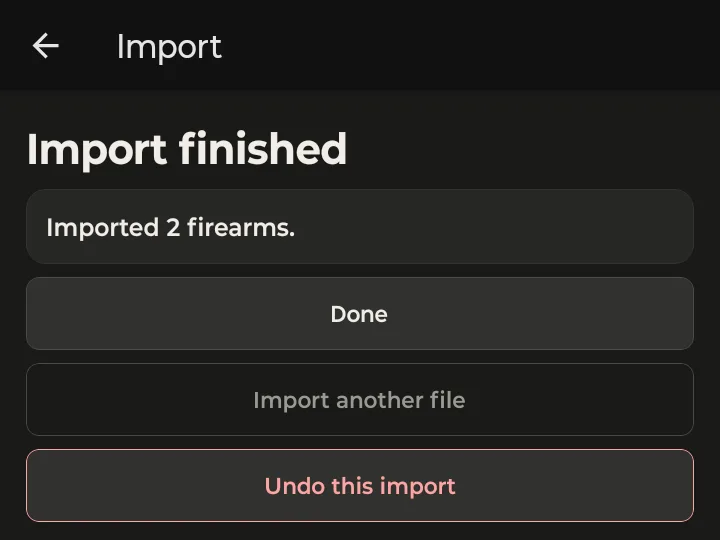
Import finished tells you what was added. Tap Done when you're finished, or Import another file for the next one.
Imported the wrong file, or the wrong sheet as firearms? Tap Undo this import. The app asks you to confirm, then removes everything that import added.
Big workbook, or rows to fix? The web app has the same import, plus editing rows in place and filters for errors and duplicates. Import Your Gun Collection From a Spreadsheet walks through it.